
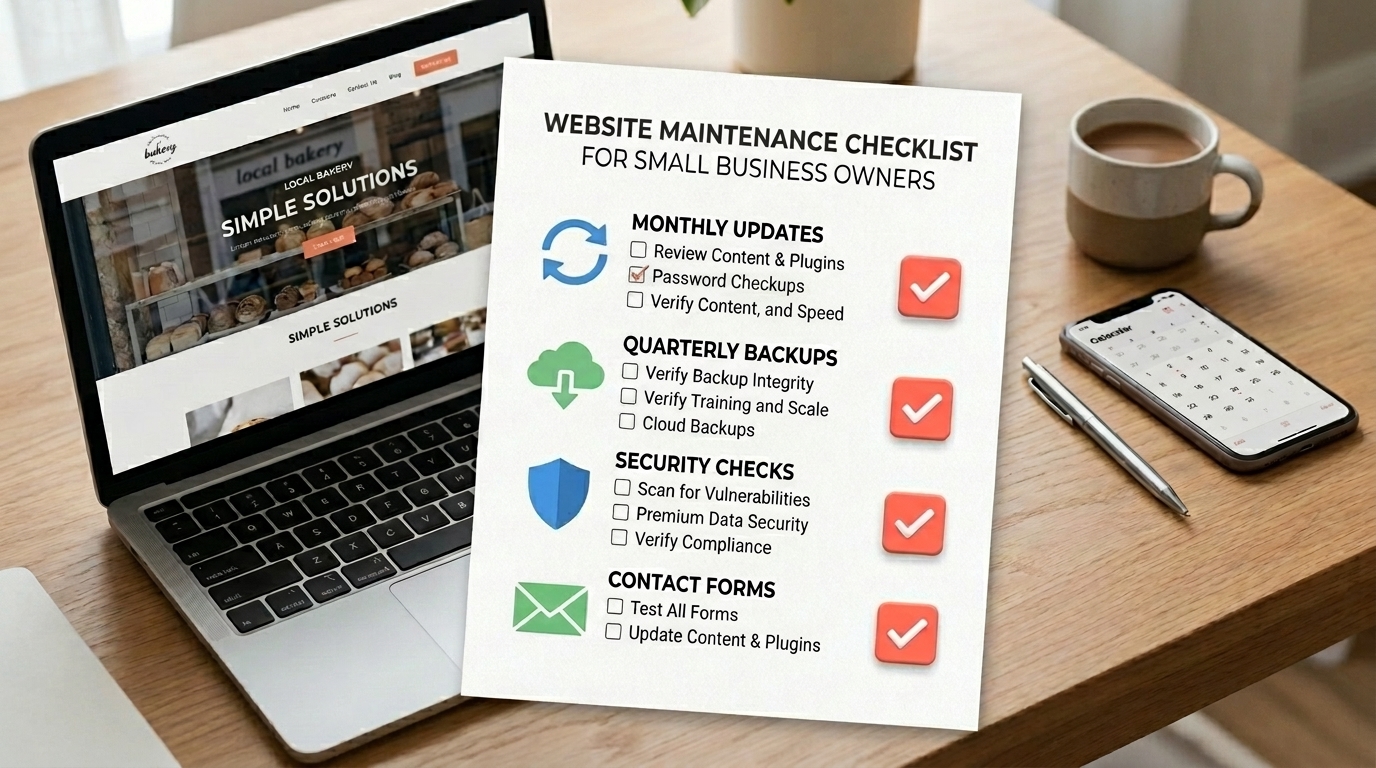
Many small business owners think of a website like a brochure: you build it once, and it just “sits there.”
But a website is more like a car. If you never check it, problems build up quietly.
The tricky part is that most website issues do not announce themselves.
A contact form can break. A plugin can become a security risk. A page can slow down. And you may not notice until leads drop.
This website maintenance checklist will help you keep your site secure, updated, and lead-ready without feeling overwhelmed.
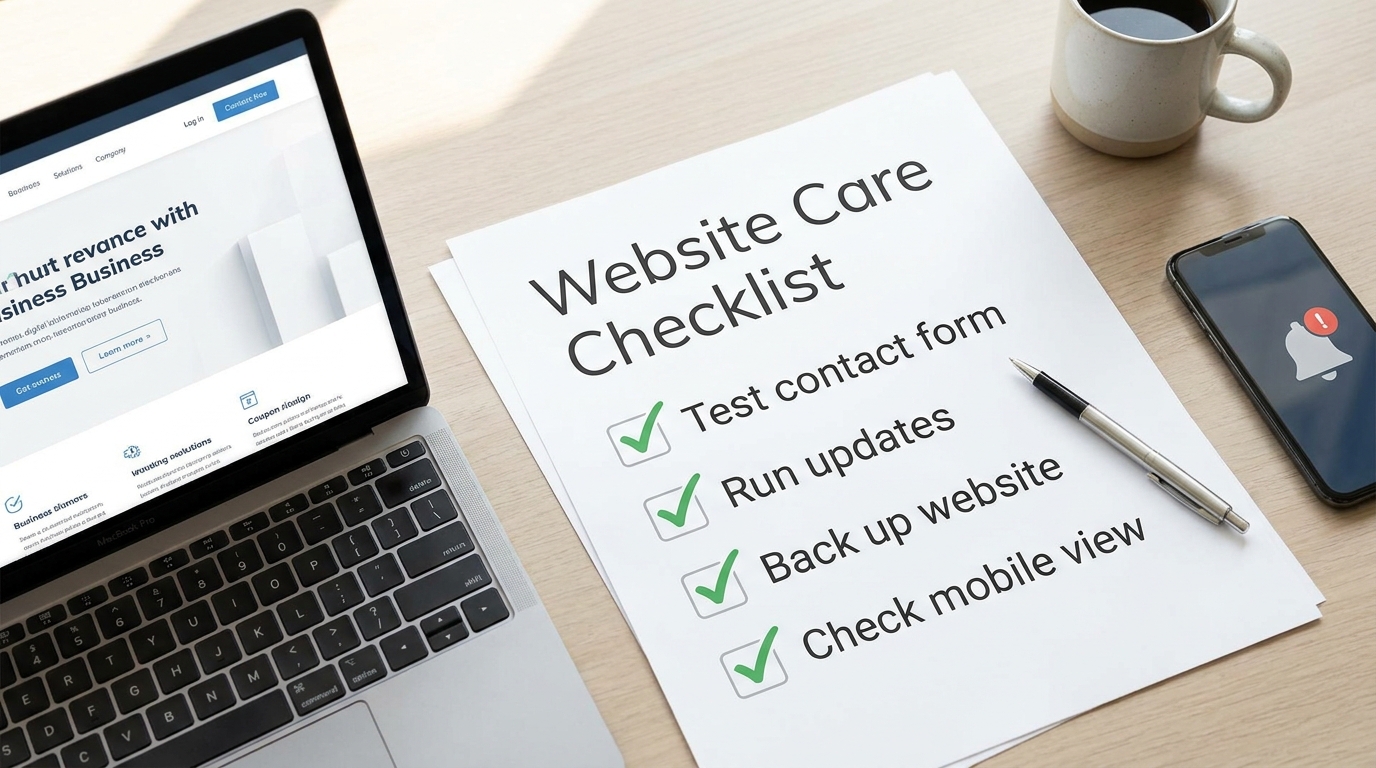
What is website maintenance?
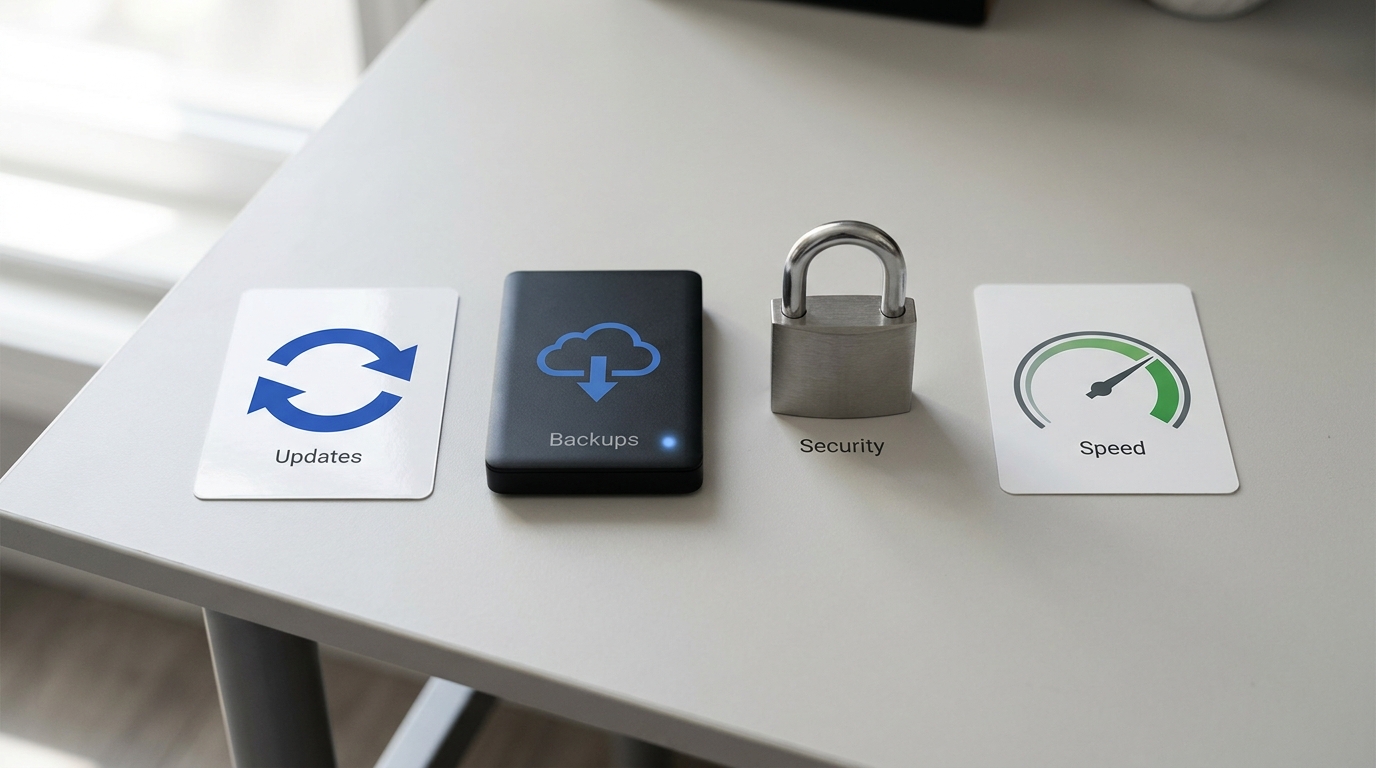
Website maintenance is the routine work that keeps your website:
- secure
- working properly
- fast enough
- updated and accurate
- easy for customers to contact you
Why maintenance matters (even if your site looks fine)
A website can look normal while:
- the contact form is not sending emails
- updates are overdue
- a plugin has a security issue
- the site is getting slower
- links are broken
That is why a checklist helps.
The website maintenance checklist (by frequency)
Use a regular maintenance routine, but do not wait for a calendar date to address a security issue. Schedule automatic backups to match how often your content, inquiries, or orders change.
When updates are released
Do not wait until a monthly review to handle a security release. Review update notices promptly, confirm a usable backup before manual changes, and test the site afterward. Keep an automatic backup schedule that matches how often the site changes, and periodically check that a backup can be restored.
Weekly (10 minutes)
- Test your contact form: send a test message and confirm you receive it.
- Check your homepage on your phone: make sure buttons and text feel easy.
- Look for obvious errors: missing images, weird layouts, broken sections.
Monthly review (30–60 minutes)
- Check your backups first: confirm a recent backup of your files and database is available and stored separately from the live site.
- Review routine updates: check compatibility, apply appropriate updates after backing up, and test your key pages and forms.
- Check for broken links: especially on service pages and buttons.
- Review one key page: homepage, services, or contact. Update outdated info.
- Check website speed: if pages feel slow, it may be time to optimize images.
Quarterly (every 3 months)
- Review your main calls-to-action: do they still match what you want?
- Add 1 new trust update: a new review, testimonial, or recent project.
- Check your SEO basics: page titles, headings, and internal links.
- Audit mobile experience: menus, forms, readability.
Yearly (or twice per year)
- Refresh your photos and key messaging if the site feels dated.
- Review your service list and pricing so the website matches reality.
- Consider a small redesign refresh if the layout looks outdated.
Quick wins that prevent the biggest problems
If you only do three things, do these:
- Test the contact form.
- Maintain backups and handle software updates promptly.
- Keep the homepage and services page accurate.
Common mistake to avoid
A common mistake is waiting until something breaks.
Website problems are cheaper (and less stressful) to prevent than to fix after the fact — especially if the issue costs you leads.
What to do next
If maintenance feels overwhelming, a simple care plan can remove that stress.
Kreative Mojo Design helps small businesses with updates, backups, security checks, and ongoing support. Explore our website care services or ask about maintaining your site.
Key takeaways
- Most website problems are “quiet problems.”
- Test your contact form regularly.
- Keep updates and backups consistent.
- Review mobile experience often.
- Small maintenance prevents big headaches.
FAQs
How often should I update my WordPress website?
Check for updates regularly and handle security releases promptly. Back up before manual updates, test important pages afterward, and use a website care plan if you prefer someone to manage the process.
Do I need website maintenance if nothing changes?
Yes — even if your content stays the same, updates and security changes still happen.
For the underlying update guidance, see WordPress’s update instructions and its site backup guide.